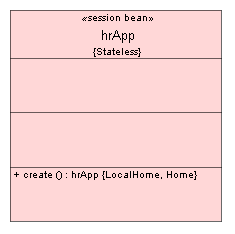
The first EJB you will create is a stateless session bean. This bean represents
a single session in your application. This session bean will also be used to
implement the Session Facade design pattern.
To create a session bean with the modeler:
- In the Navigator, right click your project (EJB-Tier.jpr)
and choose New UML Diagram.
- In the New dialog, select Class Diagram and
click OK.
- In the Create New Class Diagram dialog, change
the Name to
hr_class_diagram and
click OK.
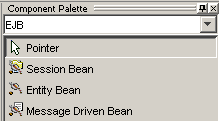
- In the Component Palette, choose EJB from the
drop-down list. (If the Component Palette is not visible, from the View
menu choose Component Palette.)
- In the Component Palette, click Session Bean
to create a new session bean.
- In the class diagram (the empty window), click in one corner and drag towards
the opposite corner to draw a session bean on the class diagram.
The Enterprise JavaBean Wizard opens.
- Review the information on the Welcome page and then click Next.
- On the Select EJB Version page, chose the default (Enterprise
JavaBeans 2.0) and click Next.
- On the EJB Name and Options page, enter a
hrApp in the EJB
Name field.
Notice the Session Type is Stateless.
Accept this as the default and click Next.
- On the Class Definitions page you can accept the defaults and click Next.
- On the EJB Home and Component Interfaces page, select the checkboxes for
both Include Remote Interfaces and Include
Local Interfaces.
- Click Next.
- On the Summary page, review the choices you have made. Click Finish.
Your session bean is added to the UML diagram.