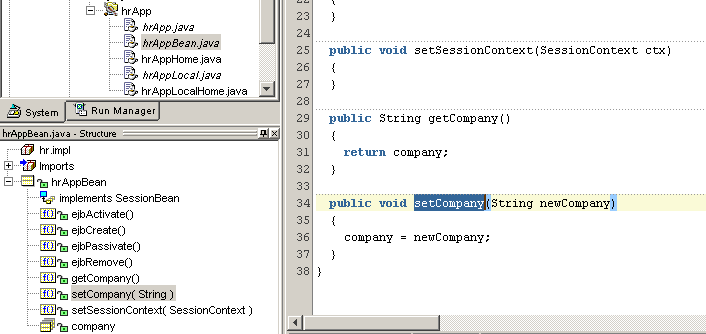
Now that your session bean has been created, you will add a new field, company.
To create a new field:
- On the UML diagram, click into the first empty compartment on the session
bean to create a new attribute. Type
company : String to create
a field called company of type String.
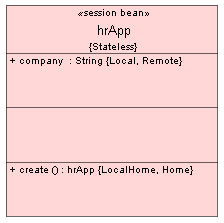
- Click outside of the session bean to remove the focus.
The field you added in the UML diagram is synchronized with the other tools.
To see this, take a look at the EJB Module Editor.
To open the EJB Module Editor:
- In the UML diagram, double click anywhere on the session bean to open the
EJB Module Editor. Alternatively, in the Navigator, right-click on your session
bean (hrApp) and chose Edit EJB.
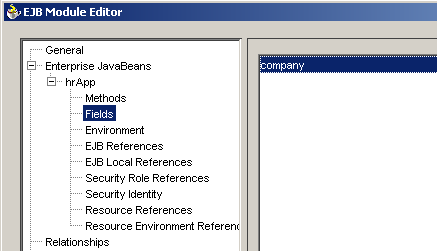
- Expand the node for your session bean (hrApp)
and click the Fields node.
Notice that the field you added in the UML diagram appears in the Fields page
of the EJB Module Editor. The EJB Module Editor is used to edit the EJB module
or any of the EJBs contained within.
- Close the EJB Module Editor.
To view the Java code that this step added, take a look at the Code Editor.
To view the generated code in the Code Editor:
- In the Navigator, expand the folders for you project (EJB-Tier.jpr),
the EJB module (ejb-jar.xml), and your session
bean (hrApp).
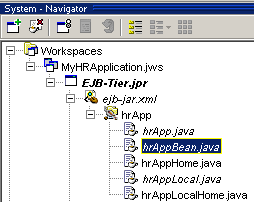
- Double click on your bean class (hrAppBean.java).
The file opens in the Code Editor.
- In the Structure pane of the Navigator, double click getCompany()
to jump to that method in the code.
Notice that the framework generated getter and setter methods for the field
you added in the UML diagram.