The first step is to create a new finder method in the Dept entity bean. While
you could create this method on the UML diagram, this time you'll use the EJB
Module Editor so that you can become familiar with this tool.
To create a new finder method:
- In the Navigator, double-click the Dept entity
bean.
The EJB Module Editor opens.
- In the EJB Module Editor, expand the Dept node
and click Methods.
- In the Method Category, select Finder
Methods.
- Click Add.
The Method Details dialog opens.
- In the Method Details dialog, change the Name
to
findByDname
- In the Return Type field, type
DeptLocal.
- In the Parameters field, type
String dname
- On the bottom of the dialog, click the EJB QL
tab.
- Paste in the following code:
select distinct object (d)
from Dept d
where d.department_name = ?1
- Click OK to close the dialog.
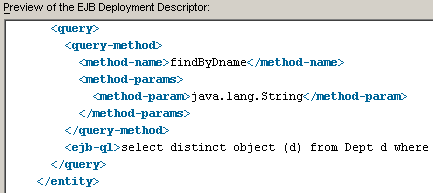
- In the EJB Module Editor, click Preview XML.
Notice the query tag that was added.
- Click OK to close the EJB Module Editor.