Using a JClient Form
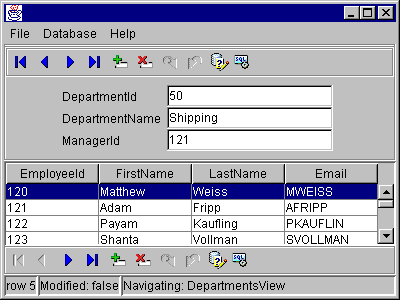
When a JClient form has been deployed to a client machine, users can use it to display and manipulate data in the form. This figure shows an example of a JClient form displayed in a frame window.
At the top of the form is a menu bar. Below the menu bar is a navigation bar that controls the navigation of data in the master table. A navigation bar at the bottom of the form allows users to navigate and interact with the detail table.
In this example, the master table is the Department table. Several databound text field controls represent columns in the Department table and display DEPTNO, DNAME, and MGRNO. The form uses a databound grid control to display data from the detail Employee table.
When data is entered in the Department Id field, the JClient form uses the master-detail association between the Department and Employee tables to locate data that is displayed in the grid control. The columns from the detail table displayed in the grid control are EMPNO, FIRSTNAME, LASTNAME, and EMAIL. Finally, the form contains a status bar that provides status about the data displayed on the form.
Navigating a Rowset in a JClient Form
The following table highlights the actions you can take using the navigation bar to interact with a JClient form.
|
To perform this action: |
Click: |
|---|---|
|
Navigate through data in a form (first, previous, next, last). |
|
|
Insert data in a row below the selected row. |
|
|
Delete a selected row. |
|
|
Save changes to the database. |
|
|
Undo changes made in a form. |
|
|
Toggles the behavior of the panel to support find mode or not. In find mode, you use the panel to enter parameters to modify the query. |
|
|
Executes the query associated with the panel. When the panel is set to use Find mode, this executes a query by example. |
|
Available ADF Business Component Attribute Settings
You can specify whether a form allows querying or editing of specific attributes by setting these flags for individual view object attributes in the ADF Business Components model project:
You can prevent the displayed attribute from participating in a query that the user initiates on the form in find mode. Open the view object editor and unselect Queriable in the attribute's View Attribute panel.
You can prevent the user from editing displayed attributes. Open the view object editor and select Never Updateable in the attribute's View Attribute panel.
About Find Mode for JClient Controls
Copyright © 1997, 2004, Oracle. All rights reserved.


